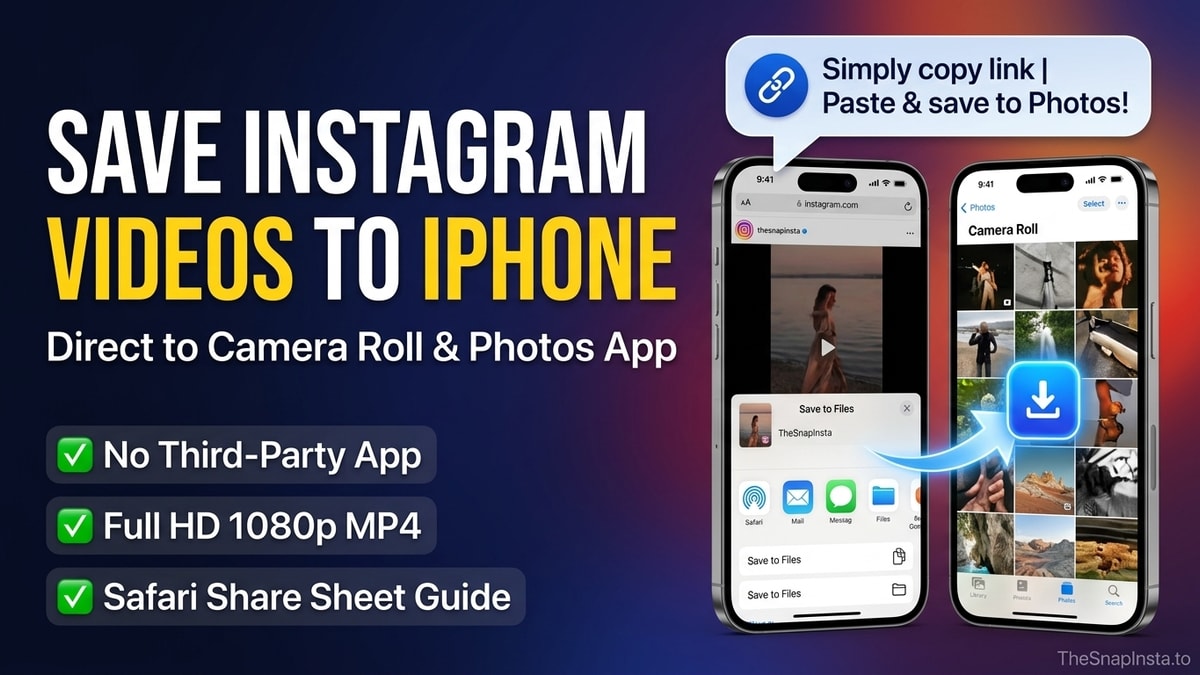
Downloading an Instagram video on an iPhone is straightforward, but many iOS users get confused when the saved video ends up in the Files app rather than their Apple Photos Camera Roll. Because of iOS sandboxing security rules, web downloads do not automatically appear alongside your personal camera photos.
This guide walks you through copying the correct Instagram link, downloading the MP4 stream through mobile Safari, and moving the file into your Camera Roll in two taps, without installing third-party App Store utilities.
1. Why iOS Separates Safari Downloads from Photos
Apple's iOS operating system isolates files downloaded from web browsers inside a sandboxed Downloads directory within the Files app (either on iCloud Drive or On My iPhone). This security barrier prevents unauthorized web scripts from writing directly to your personal photo library.
To make downloaded Instagram videos viewable in Instagram Stories, TikTok, or messaging apps, you simply trigger the native iOS Share Sheet and select Save Video.
2. Step-by-Step: From Instagram Link to Camera Roll
Follow these four simple steps on any iPhone running iOS 14, 15, 16, 17, or newer:
Step 1: Copy the Video Link from Instagram
- Open the Instagram app on your iPhone.
- Locate the Reel or video post you want to save.
- Tap the Share button (the paper airplane icon on posts, or the three dots on Reels).
- Tap Copy Link. The URL is now stored in your iOS clipboard.
Step 2: Process the Link on The SnapInsta
- Open the Safari browser (or Chrome for iOS).
- Navigate to The SnapInsta Video Downloader.
- Tap Paste in the input box, or long-press and select Paste.
- Tap Download and wait 2 to 3 seconds for the media stream to process.
Step 3: Trigger the Native Safari Download
- When the results card appears, tap Download Video.
- Safari will display a confirmation dialog: "Do you want to download [filename].mp4?".
- Tap Download.
- Watch the circular download progress indicator appear in Safari's address bar (next to the Aa icon).
Step 4: Transfer from Safari Downloads to Photos App
- Tap the Download icon in Safari's address bar, then tap Downloads.
- Tap the downloaded video file to open the full-screen iOS media preview.
- Tap the Share button (the square box with an upward arrow) in the bottom-left corner.
- Scroll down and tap Save Video.
The video is now immediately saved to your native Photos app and appears at the bottom of your Recents / Camera Roll album.
3. Alternative: Accessing the Video Through the Files App
If you closed Safari before tapping the Share button, you can locate the video anytime inside the Files app:
- Open the Files app on your iPhone (use Spotlight search if you cannot find it).
- Tap the Browse tab at the bottom right.
- Navigate to iCloud Drive > Downloads or On My iPhone > Downloads.
- Long-press the downloaded MP4 video file.
- In the pop-up menu, tap Share, then tap Save Video.
The video will be copied to your Photos library while keeping the original copy in Files. You can safely delete the file from the Downloads folder to reclaim storage.
4. Troubleshooting Common iPhone Download Issues
If you encounter difficulties during the download process, check these common configuration settings:
- "Save Video" option is missing from the Share Sheet: This occurs when the downloaded file is not encoded in a format natively supported by iOS (such as an audio-only stream or an unfinalized container). Ensure you clicked the primary MP4 video download button on The SnapInsta.
- Download stops halfway or resets: This typically happens when the iPhone enters auto-lock while downloading a large video file over cellular data. Keep the screen active until the Safari progress circle finishes.
- Insufficient iCloud or Device Storage: If your iPhone storage is full, Safari will fail silently without saving the file. Go to Settings > General > iPhone Storage to verify you have at least 500 MB of free storage.
For batch downloading multiple post links simultaneously on desktop or mobile, explore our Instagram Bulk Downloader.